
If you have social media icons, a phone number, email address, etc in the Header or Footer sections of your website then they are more than likely to be defined in the Widgets section.
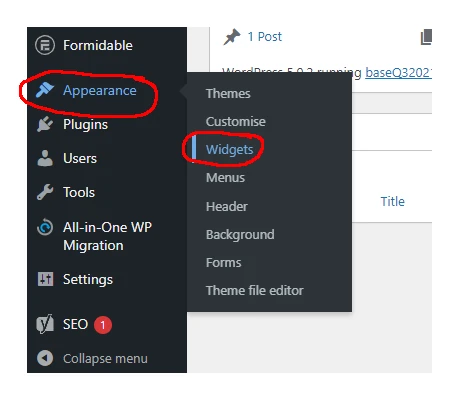
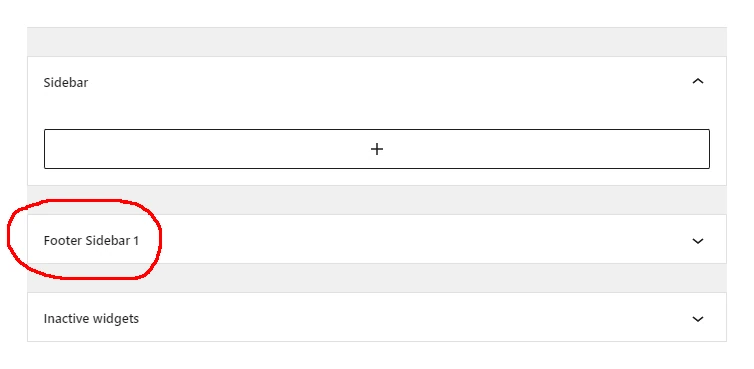
To update text in these areas is very simple. Simply click on the Header or Footer section you want to update. In the example below, we’re using a Footer Sidebar.
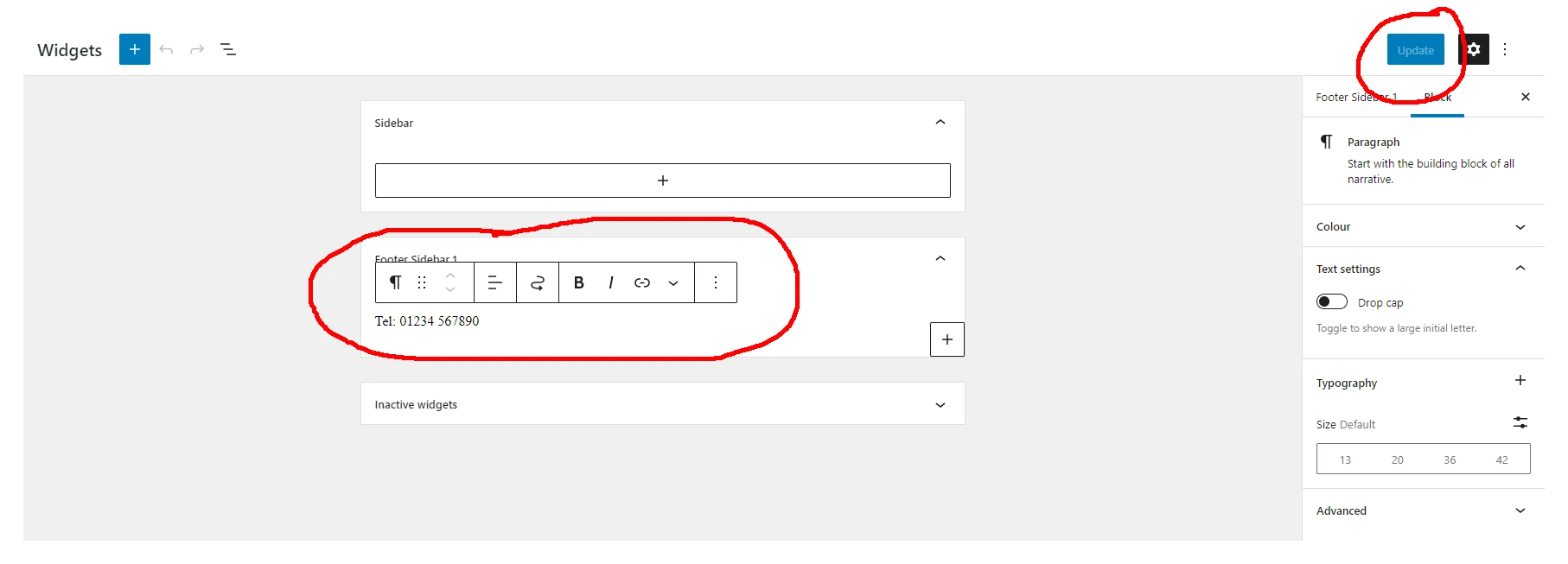
Clicking this will open the text area. Click on the text and alter it as needed. You’ll see it is not too different to editing a default page template (you can make the text bold, italic, linked, etc). Click Update to save your changes once you’ve finished here.
Adding an image to a widget
You might want your widgets to have an image (a social media icon for example). We can do this by clicking on the sidebar you want to alter. You will notice it will bring up a new box.
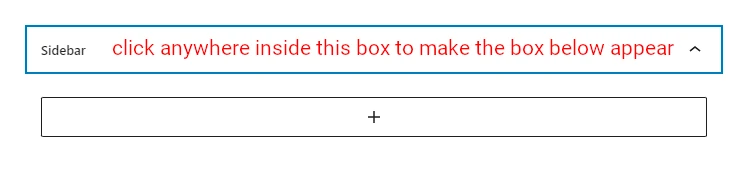
If you click the + symbol this will bring up a new box (like the one you’ll see when working with a default page template).
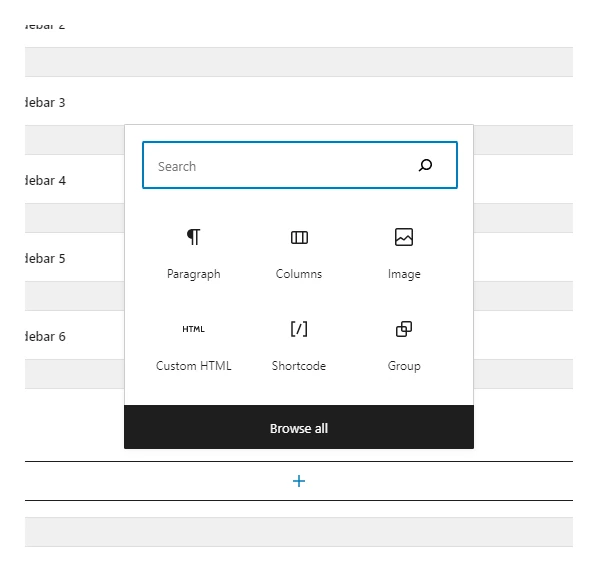
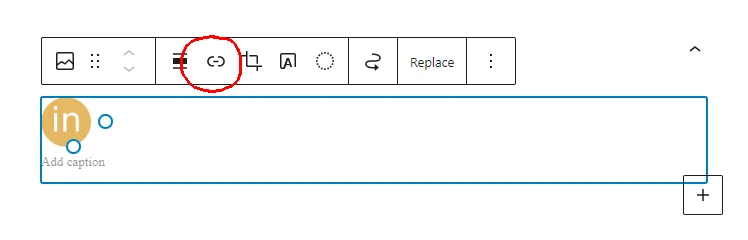
Choose Image and add it via the Media Library. Once you’ve added the image, you might want to make it link to another page, or your social media account, etc. To do this, we need to click on the image and choose the Link option.
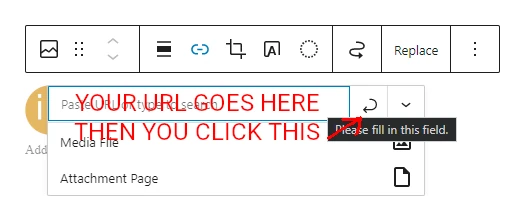
Type in (or copy/paste) the URL into the box and click the Enter icon to save.
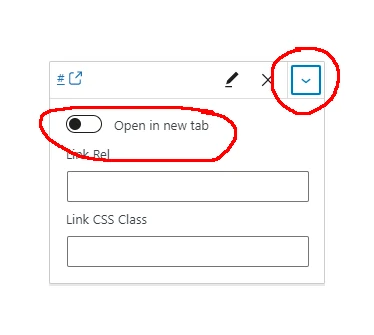
If you need the link to open in a new window or tab then there is one more step to do here – click the little down arrow.
That’s it, all done! Don’t forget to scroll back to the top of the page and click the Update button in the top-right area to save the changes.