The Dashboard
When you first log in to the back end of your website, you’ll be presented with the dashboard. Depending on your current settings, you may or may not see the full-width welcome banner across the top.
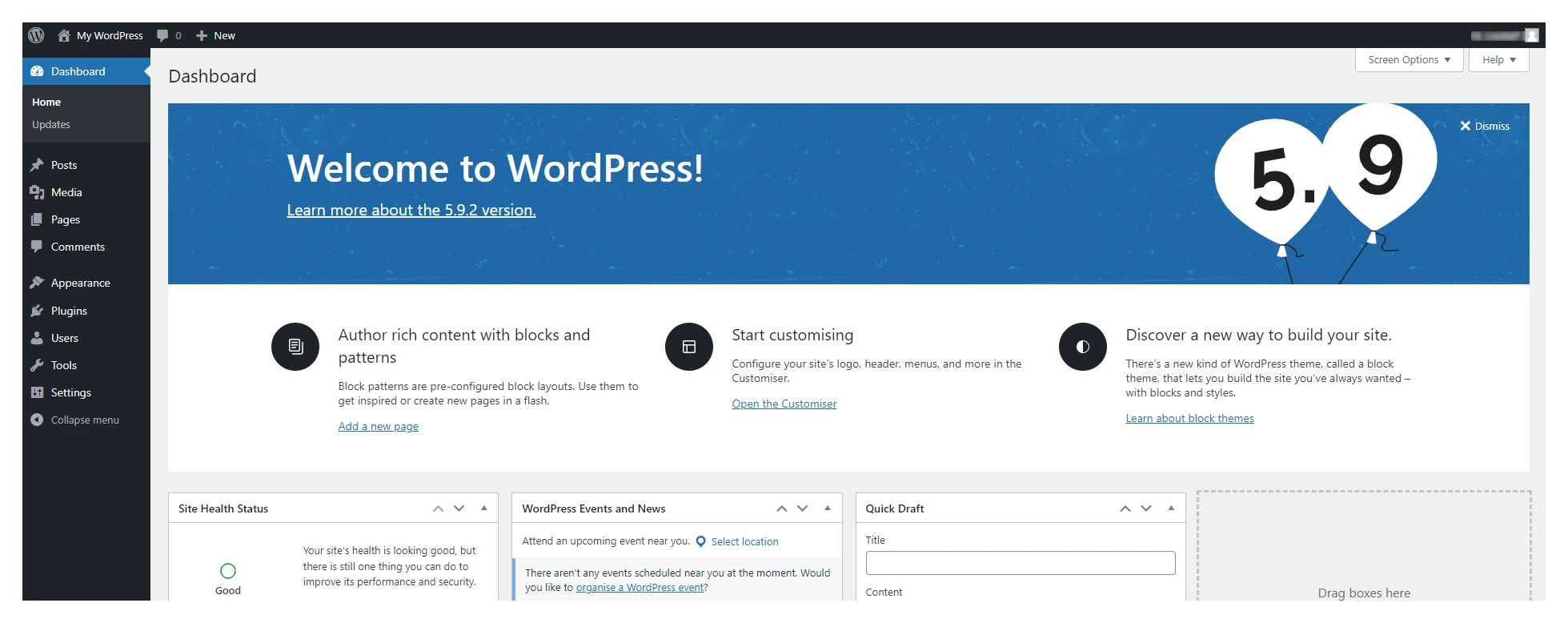
You can easily toggle this on/off in the screen options that you’ll find in the top-right area.

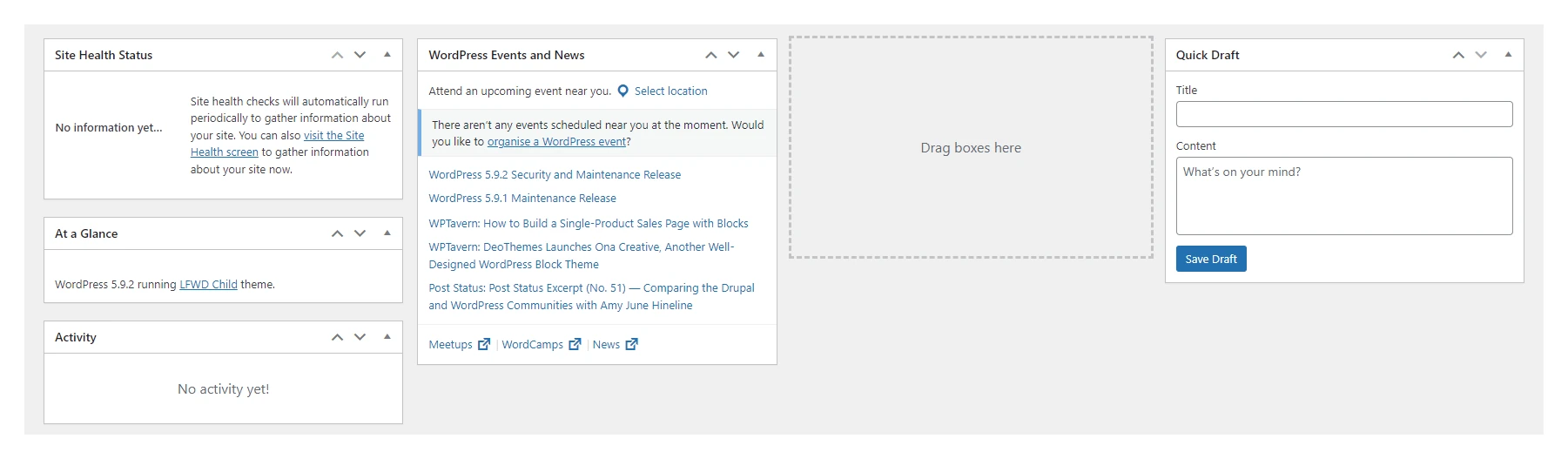
If you click this, a drop-down box called Screen elements will appear. This is where you can customise your dashboard screen. These are the boxes that appear on your dashboard. You can also drag these boxes around and arrange them however you feel.

It’s safe to play around with this section, you won’t break anything.
The left-hand menu
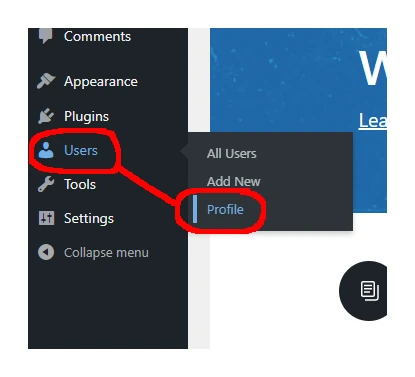
This section will show you how to change your email address and password (we won’t go into the rest of the menu options here as most of them will be covered in other training documents). You can also add and view users (other people with access to the back end) here. It’s worth noting that usernames can’t be changed, although everything else can. If you click Profile, you can update your details. Scroll down to the bottom of the profile change and click Update Profile to save any changes you make.